Getting Started with MemGym
MemGym is a practice app, not a review app. The difference matters: every card demands a prediction before you look. That prediction is the point — it turns a card into a measurement.
The 60-second first session
Here is what a first pass through the feed looks like, start to finish.
1. Open the feed.
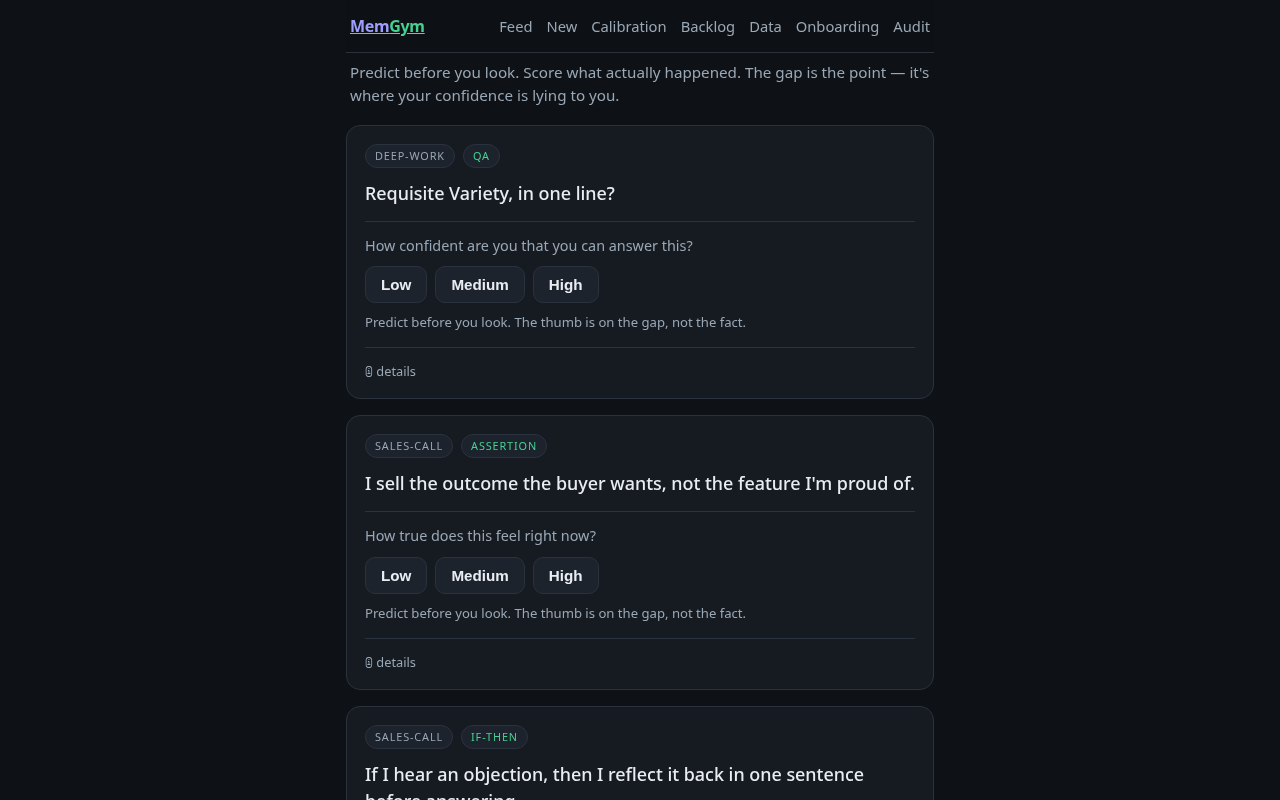
Go to app.memgym.com. The feed loads with a seed deck — a small set of cards across three contexts (deep-work, board-meeting, sales-call) covering assertions, if-then plans, and Q&A recall. These are there to demonstrate the mechanic, not as a deck you should adopt wholesale. You will write your own.

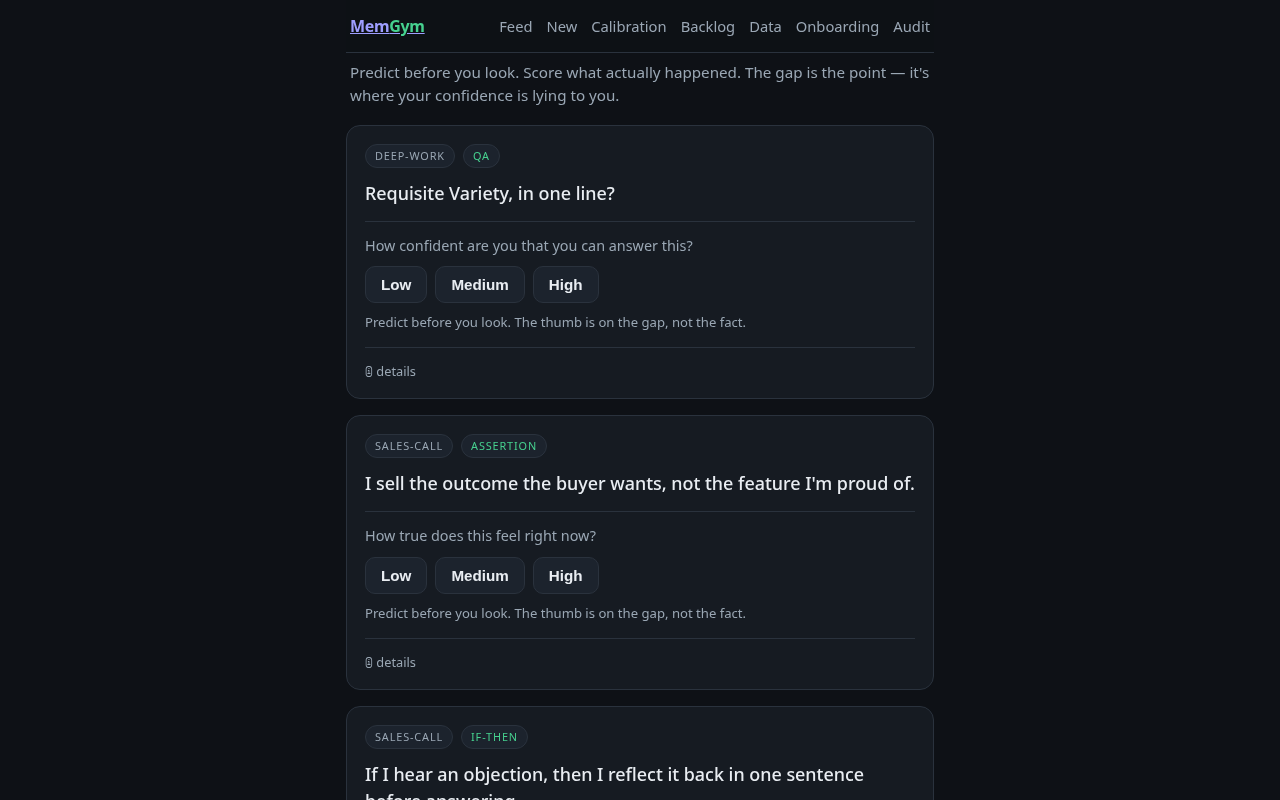
2. Read the prompt. Do not look at the answer yet. A card shows you its prompt — a question to answer, a behaviour to check yourself against, or an if-then plan to gauge your readiness for. At the bottom of the card, before anything is revealed, you see three buttons: Low / Medium / High.
3. Log your prediction. This is the signature move. Before you try to recall, attempt, or sit with the content — pick the option that honestly describes your confidence right now. Not how confident you want to be. Not how confident you were last time. Right now.
Low = I genuinely doubt I can do this. Medium = I think I can, but I'm not sure. High = I'm confident I can deliver on this.


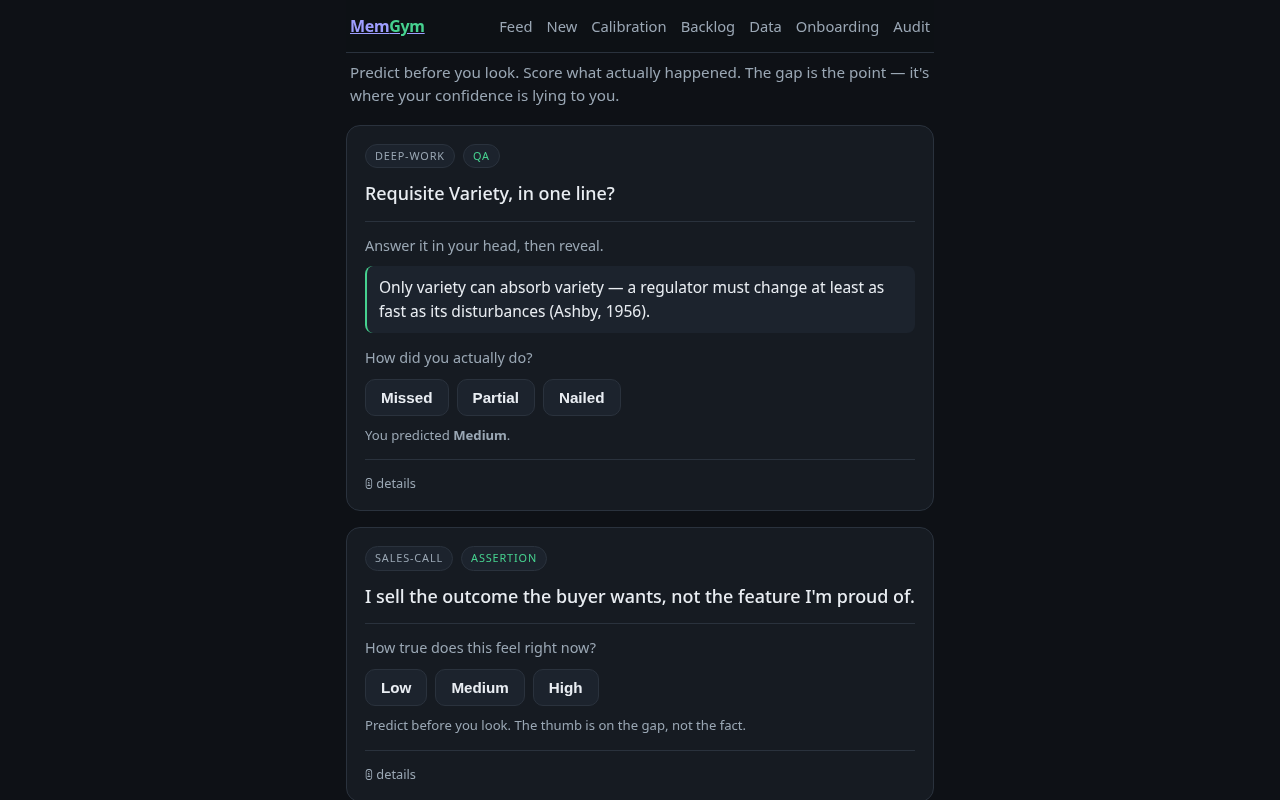
4. The card reveals. Score what actually happened. After you pick your prediction, the card opens. For a Q&A card, you see the answer and score how you actually did. For an assertion, you sit with it and decide whether to act, then score how it landed. For an if-then card, you mentally rehearse the cue-to-action sequence and score how wired-in it actually feels. Score: Missed / Partial / Nailed.

5. See the gap. The card tells you immediately: Calibrated. Overconfident a little. Underconfident badly. This is your feedback signal — not "you got it wrong," but "your read of yourself was off." That gap is what MemGym tracks over time.

6. Reflect. A new card spawns. After the verdict, you see a text box: "Reflect → make this a card." Write one concrete sentence about what you will do differently. Hit "Add to backlog." That note becomes a new card in your backlog — the loop closes. Review generated the next thing to practise.
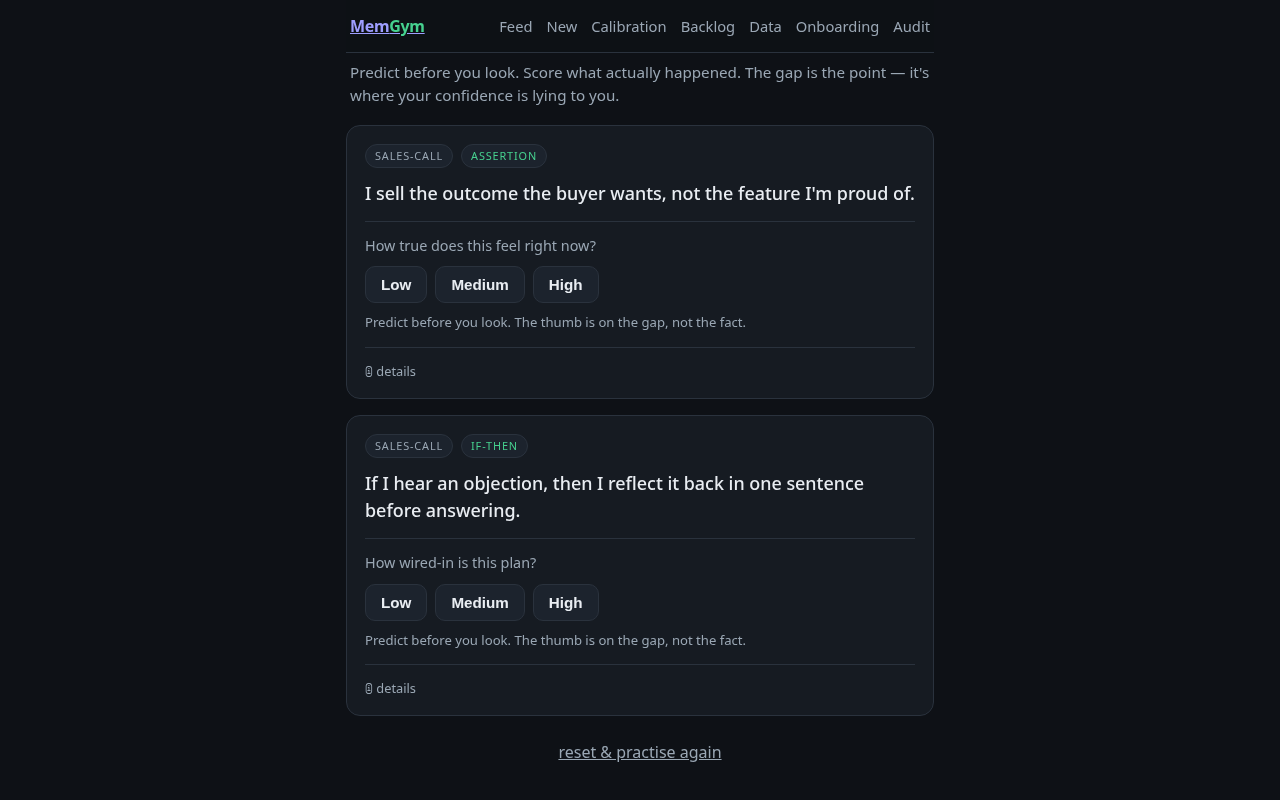
7. Move to the next card. Repeat. Scroll down to the next card in the feed. When the feed is empty, the app tells you: you have practised everything due. Check your calibration number, write a new card, or promote from the backlog.
What each screen does
Feed (home)
Your practice queue — every card that is due right now. Cards appear in the order they are due, not in a random shuffle. Each one requires a prediction before anything is revealed; there is no way to read a card passively. When you complete all cards, the feed empties cleanly rather than recycling the queue.
The feed is also where the SM-2 spacing algorithm re-admits cards you have already seen: a card you aced returns after a longer interval than one you struggled on.
New (/new)
Author a card from your own work and life. Five card types:
Assertion — a specific behaviour you want to embody. Written as "I ..." in first person, in the present tense, describing something observable. Example: "I let silence do the work after I state the price." Good assertions are narrow enough to check against a real event. Supported by self-affirmation research (d ≈ 0.41, Cohen & Sherman 2014) — modest but real when the statement is specific and values-grounded.
If-then — an implementation intention: a cue wired to an action. Written as "If [situation], then I [specific action]." Example: "If a prospect goes quiet for three days, then I send one specific value-add — not a 'just checking in'." The cue does the heavy lifting so the action is semi-automatic when the moment arrives. Implementation intentions: d ≈ 0.65 (Gollwitzer & Sheeran, 2006).
Q&A — something to recall and test. A question with a written answer that reveals on demand. Good for frameworks, definitions, or anything where you want to close the gap between "I've read it" and "I can produce it."
Scenario — a situation you want to handle better. You jot your move first, then reveal a strong response and compare. The prediction is "how well will I handle this?"; the outcome is how well your move actually matched.
Reflection — a self-directed prompt. You write your honest reflection first, then reveal the prompt's intent. The prediction is "how clearly can I answer this about myself?"; the outcome is how useful or clear the reflection turned out.
All five run the same loop: predict before any reveal, then score the gap. Card authoring (including when to reach for scenario vs reflection) is covered in depth in the card-authoring guide.
Fill in the Context field — the situation where this card applies (board-meeting, sales-call, deep-work, or anything you name). Context is how the app knows when a card is relevant; it becomes a filter on your calibration breakdown. Cards with no context default to "general."
The Science / source field is optional but useful: add the honest effect size or provenance of the claim so you know what you are rehearsing and why. MemGym never inflates these numbers.
When you submit, the card goes directly to the due feed. It will appear the next time you open the feed.

Calibration (/calibration)
The one screen that is impossible in a flashcard app.
Three numbers at the top:
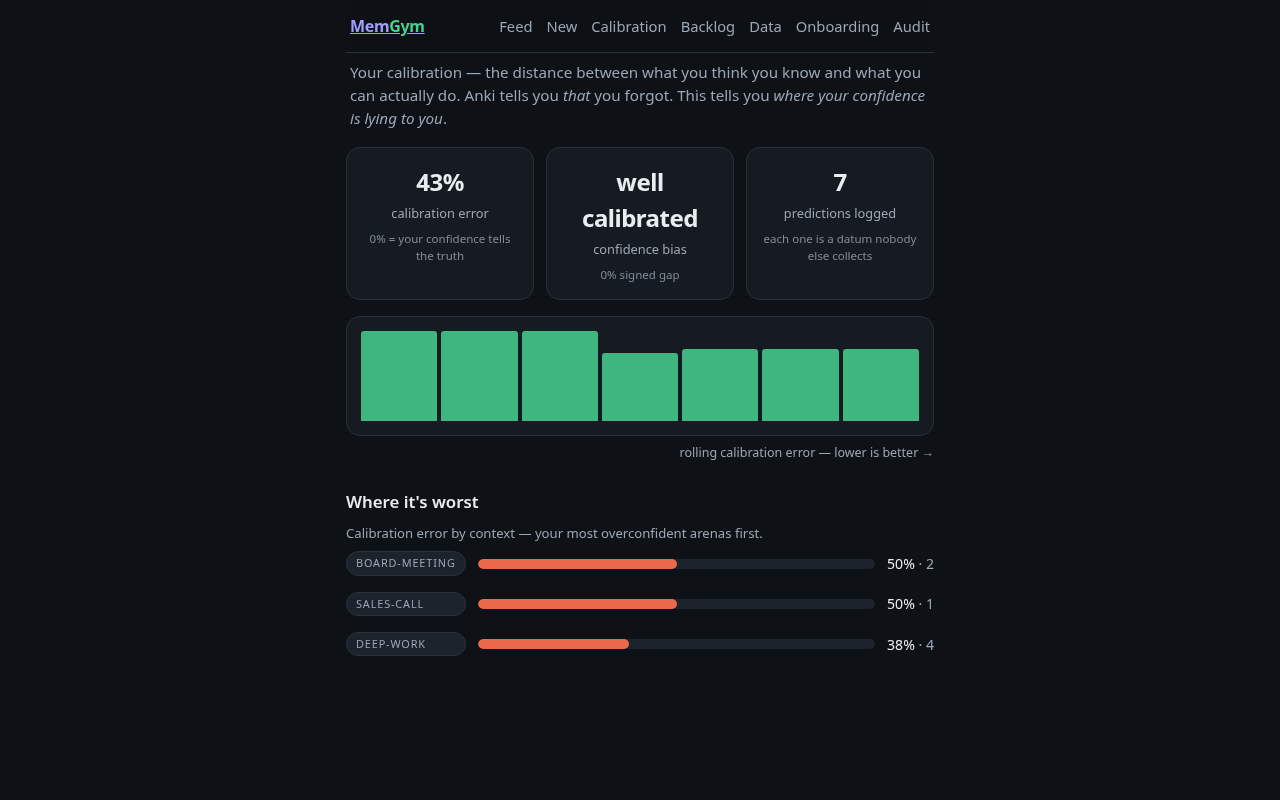
Calibration error — mean absolute gap between your predicted confidence and your actual outcome, expressed as a percentage. 0% means your confidence tells the truth. 50% means you are systematically off by half the scale. Lower is better, and you should expect it to drop as you use the app honestly.
Confidence bias — signed gap. Positive = overconfident on average (you predict more than you deliver). Negative = underconfident (you consistently undersell yourself). Both are worth knowing; they point to different interventions.
Predictions logged — the raw count of predict-then-test interactions. Each one is a data point. At ~10 entries, the trend line starts to mean something.
Below the headline numbers, a sparkline shows your rolling calibration error over your last several sessions. Watch the line. Falling = your self-assessment is getting more honest. Rising = you are drifting toward overconfidence (or the cards are getting harder).
At the bottom: Where it's worst — calibration error broken down by context. This is where you find which arena your confidence is least trustworthy. A high score on "board-meeting" with a low score on "deep-work" is actionable information.

Backlog (/backlog)
Cards that have not yet entered the practice queue. They land here two ways: reflections you wrote on the feed (the loop closing), and cards you author but are not ready to prioritise yet.
The backlog is a holding area, not a graveyard. Each card shows its context tag and prompt. Hit Practise to move a card into the due feed. That's the whole interaction; filtering and auto-surfacing come in a later phase.
If the backlog is empty, the screen tells you how to populate it: finish a card on the feed and write a reflection.

Data (/data)
Your deck, portable. No lock-in.
Export downloads your full deck — every card, its calibration history, and its schedule state. Three formats: JSON (the lossless, complete format — back this up), CSV, and Excel (.xlsx). Back it up. Move it to another device. You own it.
Import brings cards in from a file. JSON replaces your whole deck (it is the full round-trip format). CSV, Excel (.xlsx), and Anki add cards to your existing deck. For Anki, either export Notes in Plain Text (.txt), or — in account mode — import a full Anki Deck Package (.apkg) (export it with "Support older Anki versions" ticked);
.apkgdecks land in your backlog as a Classic-style collection, covered in the Importing from Anki guide. You will need to reload the page after import. (Importing decks from elsewhere is a portability convenience, not the intended practice path — the card-authoring guide explains why cards work best when you write them from your own life.)Reset calibration moves all reviewed cards back to due and clears calibration history. Card content and spacing state survive. Useful if you want to re-run a session clean, or if you are setting up a fresh practice cycle.

Card detail (/card/[id])
Every card has its own page — the place to see how this one card is calibrating, not just your deck-wide number. Open it from a card in the feed: tap ⓘ details, then open full page →.
The page shows the card, its provenance and science note, and your stats for this card — predicted vs delivered across reps, and whether the gap is closing. This is a per-card slice of /calibration, not a recall grade. From here you can write a reflection (which spawns a new card to your backlog), retire a card you have mastered, or delete one you authored.
A few AI actions — work-on-it, generate-more, explore-with-agent, edit — are visible on the page but labelled and inert. They are forthcoming, not live; the page shows the full shape without faking behaviour.
Settings: view, scoring, and feel (/settings)
The gear icon (⚙) in the top nav opens /settings. None of these change the practice loop — you always predict before you look, score what happened, and read the gap. They change how that loop is presented.
View mode — Feed or Reel. Feed is the default: a scrollable list of every due card. Reel shows one card at a time, full-screen, like a pager — advance with the on-screen arrows, the up/down arrow keys (or j/k), a swipe, or the mouse wheel; after you score a card it auto-advances. Both run the identical predict-then-test contract. You can also flip between them from the toggle in the feed header itself; the choice is remembered.
Scoring style — Buttons or Thumbs. Buttons (the default) are the explicit Missed / Partial / Nailed chips. Thumbs swap them for 👍 / 👈 / 👎 — 👍 = high/nailed, 👈 = medium/partial, 👎 = low/missed, the same mapping for the prediction and the outcome. The thumb rates the calibration gap, not whether you remembered: it is on the gap, not the fact.
Handedness — Right or Left. Moves the Reel control strip to your dominant thumb (bottom-right by default, bottom-left for left-handed users). It only affects Reel mode.
Gamification — off / subtle / full. How much the app celebrates progress, restrained by default — the gap is the reward. (The preference is saved now; the celebration layer it controls is still being built, so today the setting is mostly a statement of intent.)
How to read your calibration number
Calibration error is a distance, not a grade. It is the average of |predicted − outcome| across all your sessions, scaled to a percentage. A 0% error means every prediction matched every outcome exactly — you knew exactly what you knew. A 50% error means your predictions were wrong by half the confidence scale on average.
Most people start somewhere between 25% and 45%. That is not a failure state; it is the starting measurement. The goal is a downward trend over weeks of honest practice.
The bias direction matters more than the magnitude, at first. Systematic overconfidence (positive bias) and systematic underconfidence (negative bias) call for different responses:
- Overconfident: you are claiming readiness you do not have. The fix is harder predictions — set yourself up to be surprised, then notice where the gap is largest.
- Underconfident: you are performing better than you believe. The fix is updating your model of yourself, not lowering the bar.
The context breakdown is the most actionable number. If "sales-call" calibration error is 40% and "deep-work" is 12%, your practice energy should go into sales-call cards. The aggregate headline number is a summary; the per-context rows are where you act.
One session does not mean much. Ten does. Calibration is a statistical property — you need enough predictions logged for the average to stabilise. At five or fewer predictions, treat the number as an early sketch. At fifteen or more, it is worth paying attention to.
The one habit that makes it work
Predict honestly. Never just read.
This sounds obvious. It is not easy in practice. Every card tempts you to glance at the answer before committing to a prediction, or to pick "Medium" as a hedge when you already know the answer is High or Low. Both habits destroy the signal.
The calibration number is only meaningful if the predictions are real. A hedged prediction gives you an artificially compressed error that tells you nothing. An inflated prediction (claiming High when you suspect Medium) flatters you in the moment and hides the gap the app needs to track.
The rule is simple: pick your prediction before you read past the prompt, then commit to it. If you are genuinely uncertain, Low or Medium are honest options — they are not admissions of failure, they are data.
The measure of whether you are using MemGym correctly is not how many cards you complete per session. It is whether your calibration error is falling over time, and whether the "where it's worst" breakdown is pointing you toward real gaps in your actual work.
MemGym is a regulator. It needs a signal to regulate on. Your honest prediction is that signal.
A note on card types and effect sizes
MemGym reports honest effect sizes on each card's science note. These are real numbers from peer-reviewed research, not marketing copy:
| Mechanism | Effect size | What it means |
|---|---|---|
| Implementation intentions (if-then) | d ≈ 0.65 | Moderately large; one of the stronger behavioural mechanisms MemGym uses |
| Self-talk | d ≈ 0.48 | Moderate; instructional self-talk outperforms motivational |
| Self-affirmation (assertions) | d ≈ 0.41 | Small-to-moderate; works when the statement is specific and values-grounded |
None of these are transformational on their own. The case for MemGym is the combination — predict-then-test rehearsal applied consistently to mechanisms that each have a small-but-real evidence base, generating a calibration signal that compounds with use. There is no verified study on the integrated system yet. That is what you are helping build.
Signing in & cross-device sync
MemGym runs in one of two modes, and you may not need an account at all.
Local-first mode (the default). Your deck lives in this browser, in localStorage. No account, no server, nothing leaves your device. It is the fastest way to start — open the app and practise. The trade-offs: each browser and device has its own separate deck, and clearing your browser data clears your deck. Export from /data regularly if you rely on local-first.
Backed mode (sign in). When the instance is configured with a backend, you can sign in and your cards, predictions, and calibration history persist server-side and follow you across devices. Sign-in is by magic link — go to /login, enter your email, and open the one-time link it sends (no password). Your data is scoped to your account so only you can read it.
Why sign in? One reason: you practise on more than one device and want the same deck — and the same calibration history — on all of them. If you only ever use one browser and back up via export, local-first is enough. Signing in is the explicit, opt-in step to putting your deck on a server; until then the app stays fully local.
If the magic-link email is slow to arrive, give it a few minutes before retrying.
First steps checklist
- Complete one session through the seed deck (predict → reveal → score → reflect on at least two cards)
- Check your calibration number on /calibration
- Write at least one card from your own work on /new — an assertion about a specific behaviour you want to run better in a real context
- Write at least one if-then card with a concrete cue you will actually encounter this week
- After three sessions, look at the "where it's worst" breakdown and move more cards from that context into the due feed